Let your agent answer labor-market questions with sourced data.
MCP is the standard way AI assistants such as Claude and ChatGPT connect to outside data. Add GWIX once, and your assistant can answer with GWIX data and cite it, right in the chat.
Create a GWIX account. It starts with $250 in credits and 20 free Ask GWIX answers.
2. Add GWIX to your assistant
In Claude, ChatGPT, Cursor or any MCP client, add the GWIX server address and sign in. About a minute.
3. Ask your question
Ask about pay, hiring, companies or occupations in plain words. GWIX shows a quick summary, then the full sourced report.
What you get
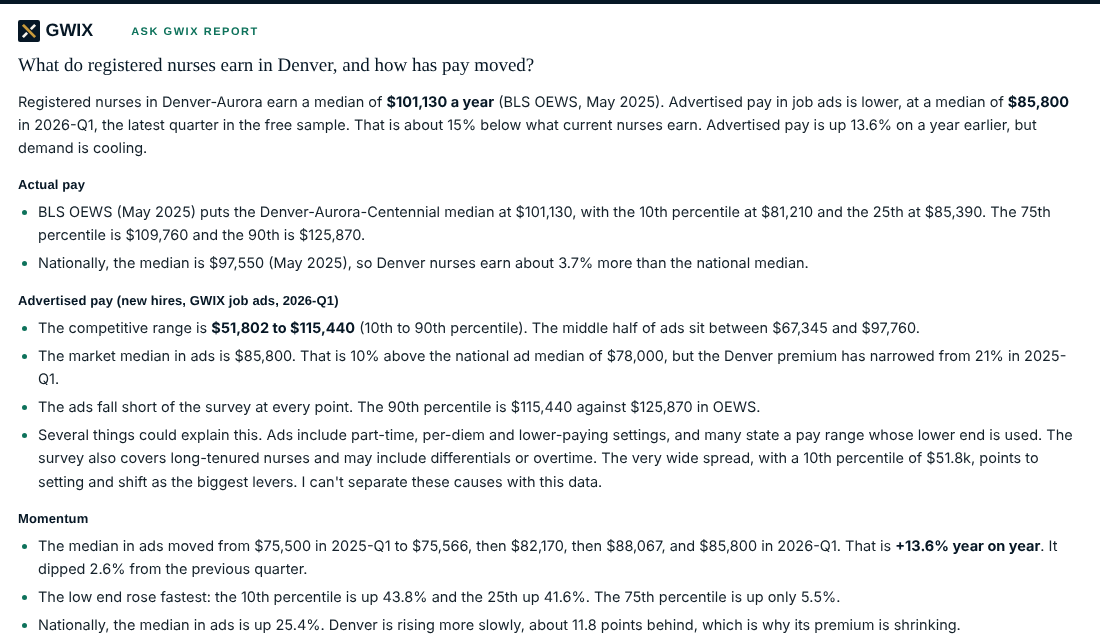
The full GWIX report, in the chat.
A quick summary arrives first. Then the full report: actual and advertised pay, the trend, hiring demand, charts, what it means and the sources behind every figure. In Claude and ChatGPT it appears in a GWIX panel, with a progress bar while GWIX works.
Tools
You don't call these yourself: you ask a question and your assistant picks the tool. Developers building agents can call them directly.
Answers
get_job_summaryA quick summary in seconds: median and range of advertised pay, the gap to the national market, the trend and job-ad volume.
ask_gwixThe full Ask GWIX report across every GWIX source and official statistics, with charts, shown in a GWIX panel where the assistant supports it.
Look up
find_idResolve companies, tickers, places, industries and job families to GWIX IDs.
describe_idWhat a GWIX ID means: name, parents and attributes.
map_occupation_codeMap SOC, O*NET, ISCO-08 and ESCO codes to GWIX and back.
list_dimensionsThe dimensions GWIX filters by and their ID formats.
Statistics
get_payAdvertised pay percentiles, trends and market benchmarks.
get_postingsJob ads posted, with change over time.
Reference and account
list_periodsPeriod labels and exact dates.
get_fx_ratesExchange rates GWIX used.
get_data_statusThe live data release and coverage by country.
read_guideDefinitions, sample minimums and how to word results.
get_account_usageYour credit balance and usage.
Coming soon: job ad records, raw and enriched, delivered in bulk.
Set up in your assistant
Server address, the same for every app:
https://api.gwix.ai/mcp
Try it without an account: https://api.gwix.ai/mcp/sample (data about six months behind, a few questions a day).
Make GWIX your default
Paste this into your assistant's custom instructions or a project's instructions, so it reaches for GWIX first.
For questions about pay, salaries, hiring, job openings, the labor market, companies' workforce, occupations or the economy, use GWIX first and cite its sources. Show GWIX's answer with its sources.
What comes back
Every result carries coverage, provenance and a ready-made citation, the same as the API, and shows the credits it used.
Claude (desktop, web and mobile)
Open Settings, then Connectors, and choose Add custom connector.
Name it GWIX and paste the server address above. Click Add.
Click Connect. The GWIX sign-in page opens: sign in or create your free account, pick your organization and allow access.
In a chat, open the tools menu and make sure GWIX is turned on.
Ask a question, for example "What do registered nurses earn in Houston?" A GWIX report card appears in the chat: a quick summary first, then the full report with charts.
ChatGPT
Open Settings, then Apps and Connectors, and add a custom connector (your workspace may need developer mode turned on).
Paste the server address above and choose OAuth sign-in.
Sign in to GWIX when the sign-in page opens, pick your organization and allow access.
In a chat, add GWIX from the tools menu and ask your question.
Cursor and other MCP clients
Add GWIX to your client's MCP settings. In Cursor, open Settings, then MCP, then Add new server, or add this to ~/.cursor/mcp.json: